
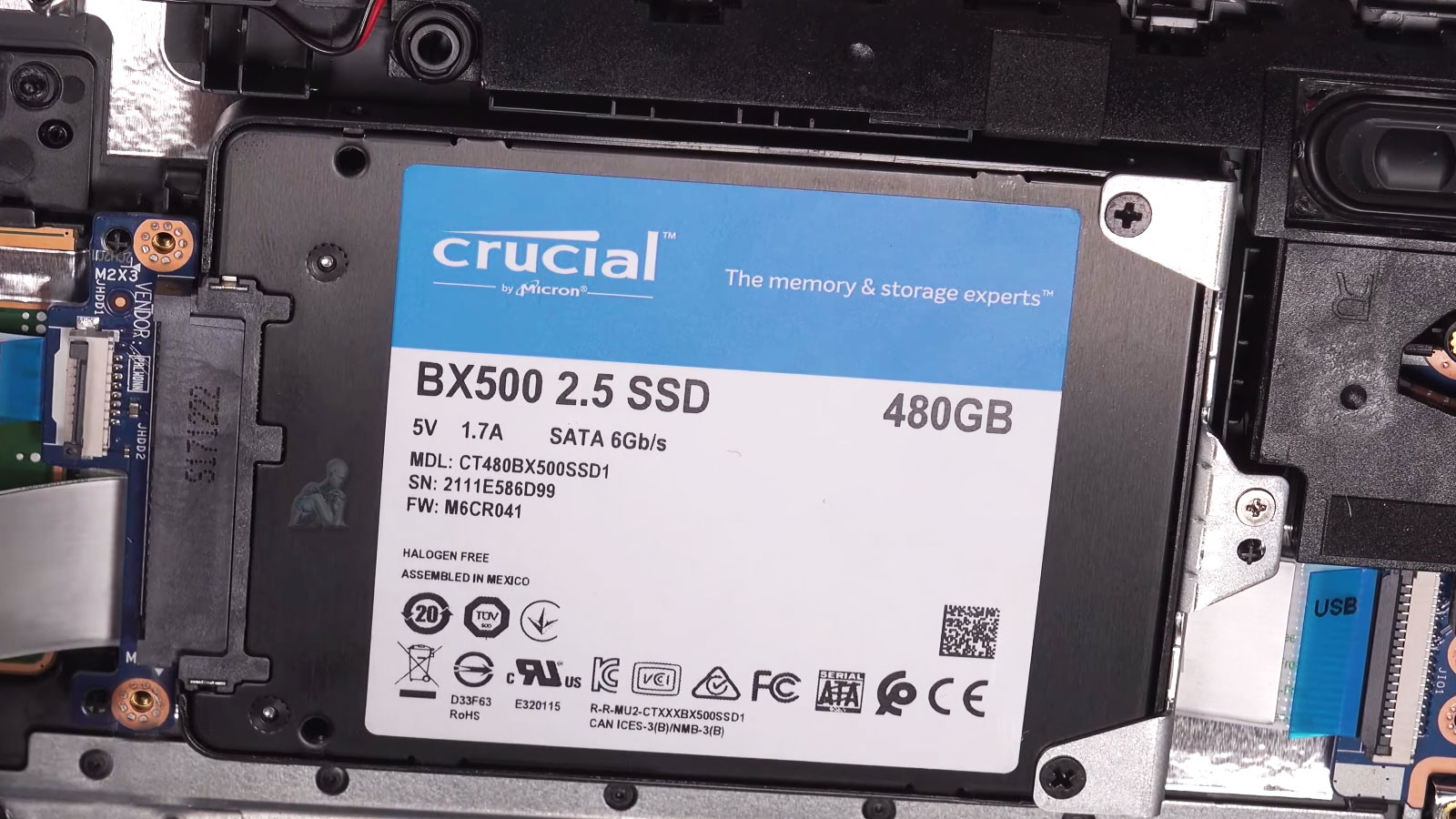
Reliable Storage Replacement and Performance Upgrades
Reliable storage is fundamental to a laptop’s overall performance, stability, and data accessibility. Over time, traditional hard drives may experience mechanical wear, while solid state drives can degrade due to prolonged use and data cycles. When storage devices begin to fail or no longer meet performance requirements, replacement becomes essential to maintain consistent system operation and prevent potential data loss.
Upgrading to a properly installed and configured storage solution can significantly improve system responsiveness and efficiency. Modern solid state drives offer faster data access, reduced latency, and enhanced reliability compared to older technologies. By ensuring correct installation, secure connections, and proper system recognition, the replacement process supports a stable environment where the laptop can operate at its intended performance level.
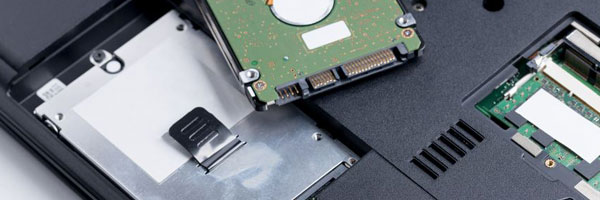
Common Signs a Laptop Drive Needs Replacement
- Slow startup or long loading times
- Frequent freezing or unexpected crashes
- Operating system failing to boot properly
- Disk errors or SMART warnings
- Clicking or abnormal noises from the drive
- Insufficient storage space for normal use
These symptoms often indicate aging hardware or internal drive failure that should be addressed before data loss occurs.
Data Preservation and Transfer Options
When replacing a laptop storage device, preserving existing data is often an important consideration. Depending on the condition of the original drive, files, system settings, and applications can be transferred to the new storage device through controlled migration processes. This approach helps maintain continuity and reduces the need to recreate environments from the beginning.
In cases where the original drive is unstable or partially accessible, selective data extraction methods may be used to recover critical information before replacement. Careful handling during this stage helps protect file integrity and ensures that important data is retained whenever possible throughout the transition.
Supported Laptop Brands
- Apple MacBook, MacBook Pro, and MacBook Air
- Dell, HP, Lenovo, ASUS, Acer, MSI
- Microsoft Surface and other ultrabooks
- Gaming, business, and student laptops
Both SATA and NVMe-based systems are supported, depending on model compatibility.
Why Choose Our Drive Replacement Service
- Over 17 years of experience with laptop hardware repairs
- Careful handling of data and internal components
- Model-specific drive compatibility verification
- Clear recommendations based on actual system needs
- No unnecessary upgrades or pressure
Our focus is long-term reliability, not short-term fixes.
Our Hard Drive Replacement Process
Drive and System Evaluation
We examine the current drive to determine its condition and confirm whether replacement is necessary or if another issue is involved.
Drive Installation (SSD or HDD)
Based on your usage needs, we install a compatible solid-state drive or traditional hard disk drive, prioritizing performance, capacity, and durability.
Operating System Installation
A fresh installation of Windows or macOS is performed and configured to ensure stability, proper drivers, and optimal performance.
Optional Data Transfer
If the original drive is still accessible, we can transfer files, documents, and user data to the new drive securely.
Testing and Optimization
Before return, the system is tested for boot speed, drive health, and overall stability.
Storage Compatibility and Configuration
Ensuring compatibility between the replacement drive and the laptop’s hardware is essential for proper functionality. Factors such as interface type, form factor, and system support must be evaluated to confirm that the new storage device integrates correctly with the existing architecture. This step helps prevent performance limitations and ensures stable operation after installation.
Proper configuration of the new drive also plays a key role in system performance. This includes initializing the storage device, aligning partitions, and confirming that the operating system recognizes and utilizes the drive efficiently. Attention to these details supports optimal performance and ensures that the upgraded storage functions reliably within the laptop environment.
Benefits of Upgrading to a Solid-State Drive
- Significantly faster boot and application load times
- Improved system responsiveness
- Lower heat output and quieter operation
- Increased durability compared to mechanical drives
An SSD upgrade is one of the most effective ways to improve overall laptop performance.
Service Area
We assist customers throughout Miami-Dade County, including:
Miami, Brickell, Coral Gables, Doral
Hialeah, Kendall, Pinecrest, Aventura
Cutler Bay, Homestead, Miami Beach, and surrounding areas
If your laptop is slowing down or showing signs of drive failure, replacing the storage device can restore performance and prevent data loss.