
RAM compatibility and Network cards.
Understanding RAM Compatibility
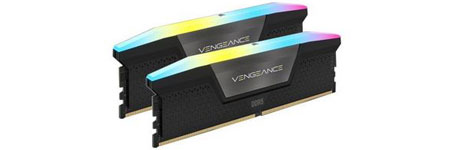
When purchasing RAM, ensuring compatibility with your system is crucial. Different versions of DDR RAM (DDR, DDR2, DDR3, DDR4, and DDR5) exist, each with unique configurations. These versions are not interchangeable. For instance, if your computer has DDR3 slots, only DDR3 RAM modules will be compatible.
RAM sticks are available in two primary forms:
- DIMM (Dual Inline Memory Module): Used in desktop computers.
- SODIMM (Small Outline DIMM): Used in laptops.
A lesser-known RAM type is Rambus (RDRAM), which features a distinctive metal covering that acts as a heat sink.
Error Detection and Correction in RAM
- Parity RAM: Includes an extra bit per byte to detect errors but increases cost.
- Non-Parity RAM: Uses only eight bits per byte, making it more affordable but unable to detect errors.
- ECC (Error Correction Code) RAM: Can detect and correct memory errors, commonly used in high-end servers.
- Non-ECC RAM: Lacks error correction capabilities and is cheaper, making it ideal for desktop systems.
Most operating systems and applications include built-in routines for basic memory error detection and correction, reducing the necessity of ECC RAM for consumer use.
Optimizing RAM Performance
- Dual-Channel RAM: Enhances performance by combining two memory slots into one bank. To maximize efficiency, always install matched RAM sticks in the same-colored slots.
- Clock Speed Considerations: RAM modules operate at the lowest speed among installed sticks. For example, if you install a 1600 MHz module alongside a 1333 MHz module, both will run at 1333 MHz.
- DDR Naming Convention: The standard naming format for DDR memory includes the type (DDR, DDR2, DDR3, etc.) followed by its speed, such as DDR3-1600.
Network Interface Cards (NICs) and Expansion Cards
Expansion cards enhance computer functionality. A sound card, for example, improves audio quality over onboard sound systems. When installing an expansion card, always disable conflicting onboard devices to prevent system conflicts.
Common Issues with Expansion Cards
- Graphics Card Power Requirements: PCIe graphics cards require power from a 6-pin or 8-pin power connector. Inadequate power supply can lead to performance issues.
- Driver Updates: If a new expansion card malfunctions, check the manufacturer’s website for updated drivers.
Network Interface Cards (NICs)
A NIC (Network Interface Card) is often added to replace a failed onboard NIC or to upgrade network speed. If your system’s built-in NIC supports 100 Mbps but your network runs at 1,000 Mbps, adding a higher-speed NIC improves connectivity.
Multi-Homed Computers and NIC Teaming
- A multi-homed computer has two NICs, allowing it to connect to multiple networks.
- NIC Teaming (Link Aggregation): Uses two NICs to boost data throughput and improve redundancy.
- Most NICs utilize 8P8C connectors (commonly mistaken as RJ-45) with twisted-pair cables but may support other connection types.
Conclusion
Understanding RAM compatibility and expansion card installation is essential for optimal computer performance. When upgrading RAM, always ensure compatibility with your system’s motherboard, and for network upgrades, consider NIC specifications to maximize connectivity speed.