
MacBook Pro is the Best for your Business
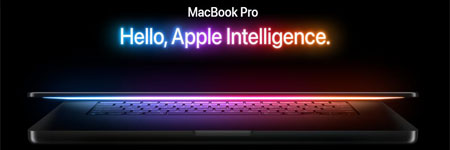
Why Choose a MacBook for Your Business?
The MacBook lineup is renowned for its sleek design, high-quality build, and seamless integration between hardware and software. Apple’s control over both aspects ensures a superior user experience. While competitors like Acer and Toshiba offer viable alternatives, the MacBook Pro series stands out as a top choice for professionals.
However, choosing the right MacBook model is crucial. Apple offers three primary options:
- MacBook (general-purpose use)
- MacBook Air (lightweight and portable)
- MacBook Pro (high-performance computing)
Each model serves different needs, so let’s break them down to help you determine the best fit for your business.
MacBook: The Entry-Level Business Companion
The MacBook is ideal for everyday tasks such as word processing, email, and web browsing. It features a 13.3-inch display, providing a great balance between usability and portability. The solid keyboard and robust build make it a reliable choice. However, at 5 pounds, it is slightly heavier than some competitors in its category.
If your work does not require graphics-intensive applications, the MacBook is a budget-friendly and efficient option.
MacBook Pro: The Powerhouse for Professionals
For those handling demanding tasks like video editing, 3D modeling, and gaming, the MacBook Pro is the ultimate choice. While it comes at a higher cost, its discrete GPU (NVIDIA 8600GT) ensures excellent performance for graphics-heavy applications.
Key Features of the MacBook Pro:
- High-end NVIDIA GPU for smooth video editing and 3D rendering
- LED-backlit Retina display for superior color accuracy
- Backlit keyboard for convenient typing in low-light environments
- Multi-touch trackpad for enhanced navigation
- Durable aluminum enclosure for premium build quality
- Multiple input/output ports for better connectivity
If you need a powerful, professional-grade laptop that performs on par with desktop computers, the MacBook Pro is worth the investment.
MacBook Air: Lightweight and Portable
The MacBook Air is designed for users who prioritize portability over power. While it boasts a thin and lightweight design, it has several limitations:
- Non-upgradable RAM and storage
- Slower processor compared to the MacBook Pro
- No built-in optical drive or Ethernet port
Although the MacBook Air suits casual users, business professionals requiring more power should opt for the MacBook or MacBook Pro.
Is the MacBook Pro Worth the Investment?
For professionals in graphic design, video editing, and high-performance computing, the MacBook Pro is a valuable asset. It delivers a seamless user experience and robust performance, making it the best investment for business use.
Beware of Free iPad Scams
While researching MacBooks, you may come across free iPad tester programs. Some legitimate offers exist, where users test an iPad and provide feedback in exchange for a free device. However, many scams exploit this concept.
How to Spot a Scam:
- Legitimate programs never ask for payment. If a tester program requires a fee, it is a scam.
- Never share sensitive personal information. If a website asks for credit card details or banking information in exchange for a free iPad, avoid it.
- Verify the source. Genuine programs are directly linked to Apple or authorized partners.
Conclusion
The MacBook Pro stands out as the best business laptop, offering top-tier performance, premium build quality, and excellent features. Whether you’re an entrepreneur, designer, or developer, investing in a MacBook Pro ensures efficiency and reliability.
When choosing between MacBook models, consider your specific business needs. If you require high-performance computing, go for the MacBook Pro. For portability with basic functions, the MacBook Air may suffice. And if you’re looking for an affordable yet reliable option, the MacBook is a great choice.
Upgrade to a MacBook Pro today and experience unparalleled productivity!