
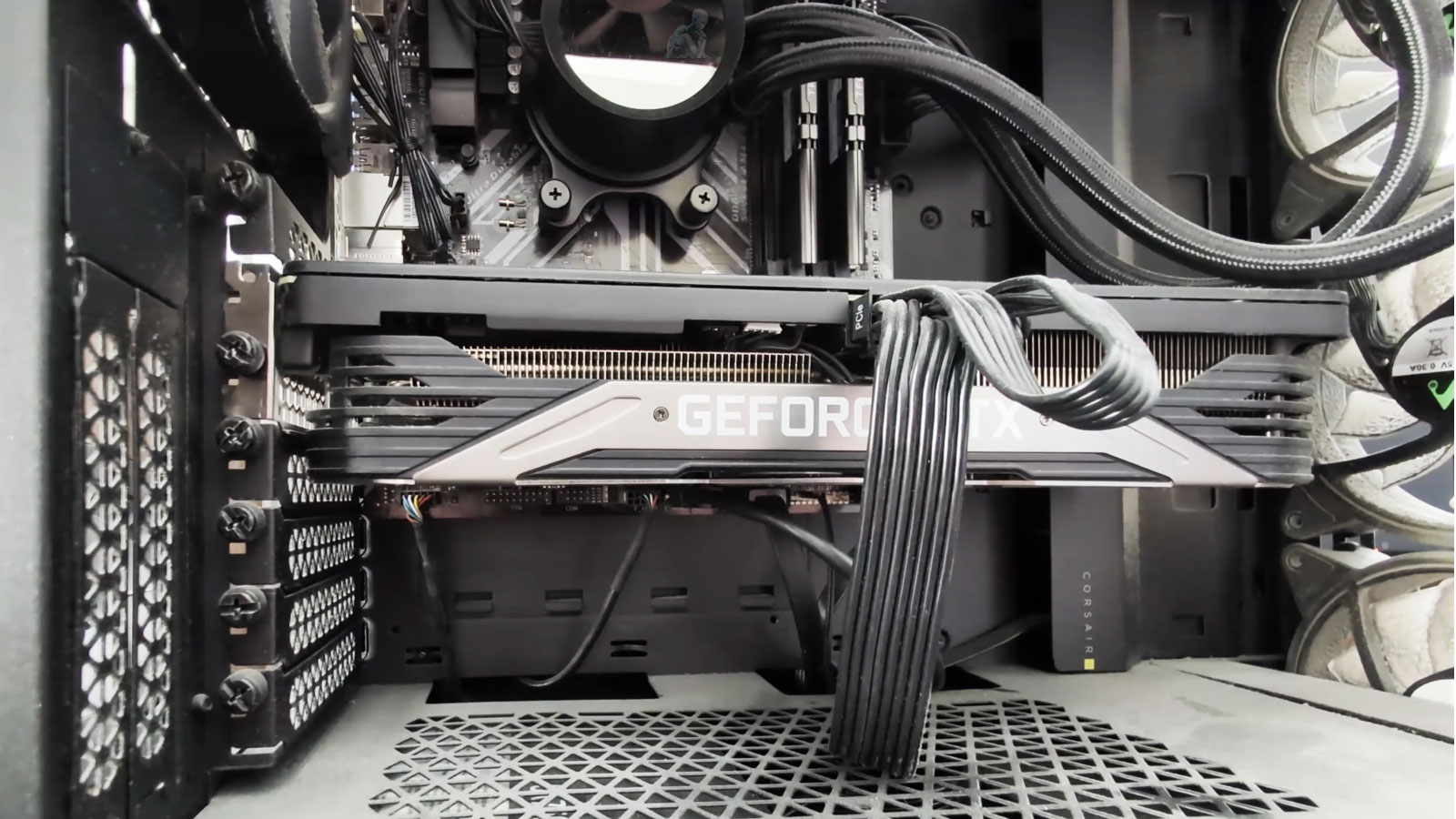
How Dust and Poor Airflow Gradually Reduce Computer Performance and Reliability
A computer can continue operating for a long time while its cooling system gradually becomes less effective. Dust accumulates slowly, fan blades collect debris, filters become restricted, and narrow passages through heatsinks begin to close. Because the change happens over months rather than minutes, there may be no single moment when the computer suddenly appears to have a cooling problem.
Instead, the first signs can be subtle. Fans may run faster than they used to. The computer may become noticeably louder during ordinary tasks. Performance can decline during gaming, rendering, or other sustained workloads even though everything seems normal when the system is first turned on. Eventually, temperatures that were once comfortably within the system’s operating range may begin approaching thermal limits. At that point, cooling is no longer simply a matter of keeping the computer quiet. It can directly affect performance, stability, and long-term hardware reliability.
How Airflow Removes Heat From a Computer
Nearly every major component inside a computer produces heat while operating. The processor and graphics card are usually the most obvious sources, but voltage regulators, memory, storage devices, power-supply components, and other circuitry also contribute to the thermal load. Cooling depends on moving that heat away from the components and eventually out of the enclosure. A CPU cooler, for example, transfers heat from the processor into a heatsink. The heatsink provides a much larger surface area from which that heat can be transferred to the surrounding air. A fan then moves cooler air through the heatsink fins, carrying heated air away.
Case airflow continues the process. Intake fans bring outside air into the enclosure while exhaust fans remove warmer internal air. A properly ventilated computer maintains a continuous exchange rather than allowing heated air to remain trapped around the components. The cooling system therefore depends on more than the number of fans installed. Air needs an unobstructed path through the case, through cooling fins, and around components that generate heat.
What Dust Does to Heatsinks and Fans
A small amount of dust on the bottom of a computer case is usually insignificant. The problem develops when dust accumulates where air must actually pass. Heatsinks are particularly vulnerable because their fins are closely spaced. This design creates the large surface area needed for efficient heat transfer, but those narrow passages can also trap dust. As buildup becomes thicker, less air passes through the fins.
In severe cases, debris can form a dense layer between a cooling fan and the heatsink. The fan may still spin normally and appear functional from the outside while very little air is actually moving through the cooling surface. Fans themselves are affected as well. Dust on fan blades changes their surface and can reduce airflow efficiency. Heavy contamination around the fan assembly can interfere with movement, while aging bearings can become another source of reduced cooling and increased noise. A system can therefore have every fan spinning and still suffer from inadequate cooling.
Restricted Intake Can Affect the Entire System
Dust does not have to reach a processor or graphics-card heatsink to create a thermal problem. Many computer cases use filtered air intakes. These filters are useful because they reduce the amount of debris entering the enclosure, but they require maintenance. As a filter fills with dust, resistance to airflow increases. The intake fans then have to pull air through a progressively more restrictive surface. Less fresh air enters the enclosure, which can raise the internal temperature even when individual component coolers remain relatively clean.
Airflow can also be restricted by the way the computer is installed. A tower pushed against a wall, an exhaust vent blocked by furniture, or a computer placed in an enclosed cabinet may recycle its own heated air rather than receiving a steady supply of cooler room air. Soft surfaces can be especially problematic for laptops. Placing a laptop on a bed, blanket, sofa, or other material that covers bottom or side vents can sharply reduce the amount of air available to its cooling system. Good cooling therefore depends on both the condition of the computer and the environment around it.
Higher Temperatures Can Reduce Performance
Modern processors and graphics processors are designed with thermal protection mechanisms. If operating temperatures approach defined limits, the hardware can reduce clock speed, voltage, power consumption, or some combination of these to reduce heat production. This behavior is commonly called thermal throttling.
Thermal throttling is protective. Without it, excessive temperature could create a much greater risk of instability or hardware damage. The downside is that a computer experiencing thermal throttling cannot maintain the performance it would normally deliver under adequate cooling conditions. This can produce a characteristic pattern: performance is normal at first and then declines after the computer has been under load for several minutes.
A game, for example, may initially run smoothly before frame rates begin to fall. A rendering or encoding workload may start at normal speed and then slow as temperatures rise. The same computer may seem completely normal again after it has been idle long enough to cool down. That behavior can easily be mistaken for a software problem because the computer has not necessarily crashed and may not display an error message.
Warning Signs That Cooling Should Be Checked
Not every cooling problem produces the same symptoms. Some systems simply become louder, while others lose performance or become unstable only during demanding workloads.
Laptops Have Less Margin for Airflow Problems
Cooling is especially challenging inside laptops because powerful components are packed into a very small enclosure. A typical laptop cooling assembly may use one or more small fans, heat pipes or vapor chambers, and compact fin stacks located near the exhaust vents. The passages through those fins can be extremely narrow. As dust and lint accumulate, a restriction can develop between the fan and the fin stack. From outside the computer, the vents may not appear severely contaminated. Internally, however, a layer of debris may be blocking the point where air must pass through the heatsink before leaving the chassis.
The smaller fans used in laptops also have to operate at relatively high speeds to move sufficient air through limited spaces. A partially blocked heatsink can cause the fan controller to respond by increasing fan speed, producing more noise without solving the underlying restriction. Laptop cooling problems can become particularly noticeable during charging, gaming, video processing, or other situations in which both the processor and graphics hardware are producing substantial heat.
Heat Affects More Than the CPU
Processor temperature receives a great deal of attention because CPU monitoring is readily available, but it is only part of the thermal picture. Graphics cards have their own processors, memory, voltage-regulation circuitry, and cooling systems. High-performance GPUs can produce considerable heat, and dust buildup in their heatsinks can reduce cooling effectiveness in much the same way it does on a CPU cooler.
Motherboards also contain voltage-regulation components that supply processors and other hardware. Storage devices can be temperature-sensitive, particularly high-performance NVMe solid-state drives operating under sustained workloads. Power supplies depend on airflow to cool internal switching components, transformers, capacitors, and other circuitry. A poorly ventilated case raises the temperature of the air available to many of these components at once. This is why checking only the CPU temperature can miss a broader airflow problem. The processor may remain within an acceptable range while another part of the system is operating much hotter than intended.
Long-Term Heat Exposure and Hardware Reliability
Electronic components are designed to operate within specified temperature ranges, and a computer running warm is not automatically being damaged. Temperature must always be considered in relation to the particular component and its operating specifications. Even so, consistently elevated temperatures increase thermal stress.
Components repeatedly expand as they heat and contract as they cool. Fans accumulate mechanical wear. Electrolytic capacitors and other temperature-sensitive components can age more rapidly under sustained high-temperature conditions. A cooling system already operating near its limit also has less reserve capacity when room temperature rises or workload increases. The important distinction is between a system occasionally becoming warm under heavy use and one spending much of its operating life unnecessarily hot because airflow has deteriorated. Cleaning cannot reverse aging that has already occurred, but maintaining proper cooling helps prevent avoidable thermal stress from becoming an additional factor in hardware reliability.
Cleaning a Computer Requires More Than Blowing at the Vents
Effective cleaning means removing the material that is restricting airflow rather than simply moving dust from one part of the computer to another. On a desktop, this may involve cleaning case filters, fan blades, intake and exhaust openings, CPU cooling fins, graphics-card cooling surfaces, and other accessible areas where debris has accumulated. The computer should be powered down before internal cleaning. Fans should not be deliberately spun at excessive speed with compressed air, and physical contact with circuit boards and small components should be kept to a minimum. Appropriate antistatic precautions are also sensible when working inside the system.
Laptops require greater care because reaching the actual cooling assembly may require disassembly. Blowing air through an exterior vent does not guarantee that a compacted layer of dust inside the heatsink has been removed. In some designs, careless cleaning can push debris farther into the cooling assembly instead of extracting it. There is also a difference between routine dust removal and replacing thermal interface material. Thermal paste does not need to be replaced simply because dust is being cleaned. Removing a heatsink unnecessarily introduces additional work and the possibility of creating a new thermal-contact problem if it is not reinstalled correctly.
Maintenance Frequency Depends on the Environment
There is no single cleaning interval that makes sense for every computer. A desktop operating in a relatively clean office may remain in good condition for a long time. A system positioned near the floor, used in a dusty workshop, exposed to substantial pet hair, or operating continuously may accumulate debris much faster.
The condition of the intake filters is often a useful indicator. If a filter becomes visibly restricted within a few months, waiting a year before inspecting it is probably too long for that environment. Physical placement also matters. Raising a desktop slightly off a dusty floor, keeping ventilation openings unobstructed, and providing adequate clearance around exhaust areas can reduce the amount of work the cooling system has to perform. Maintenance is most effective when it responds to actual conditions rather than an arbitrary calendar schedule.
Restoring Airflow Before Heat Becomes a Failure
Dust-related cooling problems are unusual in one important respect: they often develop slowly enough to be corrected before a component actually fails. A computer that has become louder or hotter over time may simply be compensating for cooling efficiency that has gradually declined. Removing restrictions can allow the same fans and heatsinks to work effectively again without replacing otherwise functional hardware.
That does not mean every overheating computer only needs cleaning. Failed fans, degraded cooling hardware, poor heatsink contact, power problems, incorrect firmware settings, and defective components can produce similar symptoms and require proper diagnosis. But airflow is one of the fundamental conditions under which computer hardware is expected to operate. Keeping air passages open, cooling surfaces clean, and ventilation unobstructed helps the system maintain its intended performance while reducing unnecessary thermal stress over the long term.