Call (305) 600-4217 Book Now Get 10% off your repair service
Computer Repair Miamis
  • PC REPAIR
  • LAPTOP REPAIR
  • MAC REPAIR
  • GAMING PC SERVICES
  • SERVICES
  • LOCATIONS
  • CONTACT
  • Click to open the search input field Click to open the search input field Search
  • Menu Menu

The UEFI Boot Process

You are here: Home1 / Computer Repair Blog for Diagnostics, Hardware, and System Care2 / Technical Knowledge3 / The UEFI Boot Process
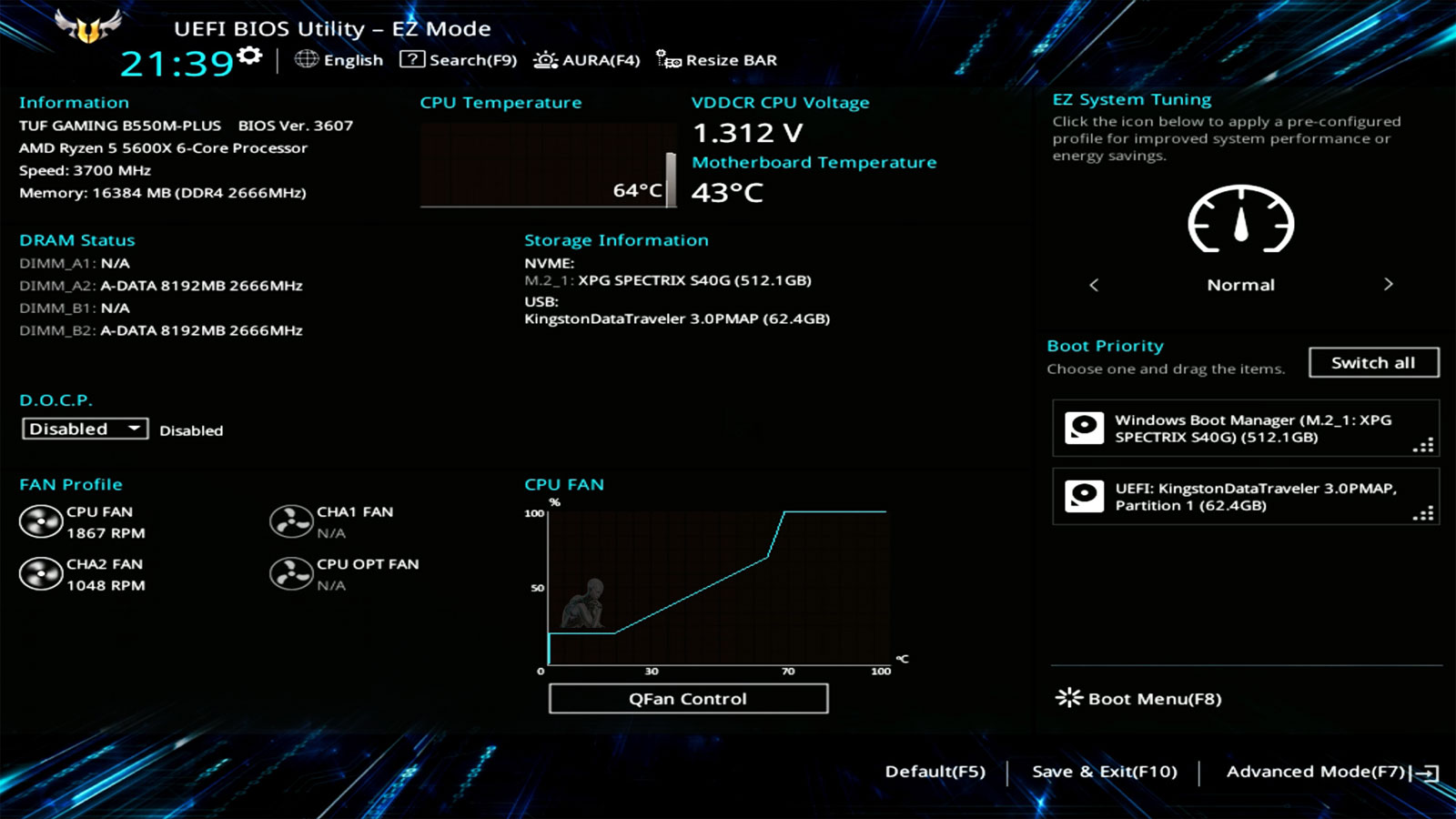
TUF Gaming UEFI BIOS interface showing system configuration and boot settings before Windows starts.

A Computer Has Work to Do Before Windows Can Load

Pressing the power button may appear to lead almost immediately to the Windows logo, but the operating system is not the first software involved in starting a PC. Before Windows can take control, the hardware has to reach a usable state, memory must become available, essential devices have to be initialized, and the system must determine where its operating system is located.

On current PCs, much of this work is coordinated by UEFI, or Unified Extensible Firmware Interface. UEFI is firmware stored on the motherboard rather than on the Windows system drive. It begins operating before Windows and provides the environment in which the computer can initialize hardware and locate a bootable operating system. The exact sequence varies among processors, chipsets, motherboards, firmware implementations, and hardware configurations. Still, the overall progression follows a recognizable path from initial power-on to the point where Windows assumes control.

UEFI Replaced the Traditional BIOS Model

For many years, PC startup was associated with the BIOS, or Basic Input/Output System. BIOS firmware initialized hardware and then looked for boot code, traditionally using structures such as the Master Boot Record on a storage device. UEFI provides a much more capable firmware environment. Among other differences, it supports modern boot methods based on executable files stored on an EFI System Partition, commonly abbreviated ESP. It also works naturally with GPT-partitioned drives, provides standardized firmware interfaces, and supports features such as Secure Boot.

People still commonly use the word “BIOS” when referring to a modern motherboard’s firmware setup screen. A manufacturer may even use BIOS terminology in its interface or documentation. Technically, however, most contemporary Windows PCs use UEFI firmware, even if the older term remains part of everyday computer language.

From Power Button to Windows Boot Manager

  • Search Search

    1. Power Is Established and the Processor Begins Execution

    Pressing the power button initiates the electrical startup process. The power supply and motherboard bring required power rails into operation, and the system holds major components in a controlled state until electrical conditions are suitable for startup. Once the processor is released into operation, it begins executing firmware instructions from a predefined starting location. Windows is not involved at this point. The CPU is executing code associated with the system firmware.

  • 2. Early Processor and Platform Initialization Begins

    The firmware establishes the basic environment necessary to continue startup. Processor-related initialization and chipset or platform configuration occur during these early stages. At this point, the computer still does not have all of the resources available that Windows will eventually use. The firmware is progressively bringing the platform into a state in which more sophisticated initialization can occur. The details are highly platform-specific, which is one reason the startup behavior of two PCs can differ even when both ultimately run the same version of Windows.

    Tools Tools

  • Heart Heart

    3. System Memory Is Initialized

    RAM is essential because the computer needs working memory before the firmware can proceed with much of the remaining startup process. The memory controller and firmware configure the installed memory according to the capabilities of the processor, motherboard, and DIMMs. Depending on the platform, this process can include memory training, during which operating parameters are established so the processor and memory can communicate reliably.

    Memory initialization can sometimes explain unusually long startup behavior after hardware changes. A motherboard may perform more extensive memory training after RAM has been installed, settings have changed, firmware has been updated, or certain configuration data has been reset. If usable memory cannot be initialized, the boot process cannot simply continue into Windows.

  • 4. POST Checks the Hardware Needed to Continue

    The familiar term POST, or Power-On Self-Test, refers to startup checks performed before the system attempts to load an operating system. POST is not necessarily one single test occurring at one precise instant. On modern systems, hardware initialization and validation occur across multiple firmware phases. From the user’s perspective, however, POST describes the period in which the computer determines whether enough essential hardware is functioning to continue booting.

    A serious problem with memory, graphics initialization, the processor, or another required part of the platform may stop the system here. When that happens, the motherboard may communicate diagnostic information through beep codes, status LEDs, hexadecimal POST codes, or other manufacturer-specific indicators. A failure before video initialization may prevent any useful message from appearing on the monitor.

    Tools Tools

  • Tools Tools

    5. Additional Hardware and Firmware Components Are Discovered

    Once the core platform is operational, the firmware can initialize and enumerate additional devices needed by the system. This can include storage controllers, PCI Express devices, USB controllers, network hardware, graphics devices, and other motherboard resources. Expansion devices can also contain firmware that participates in their initialization.

    Not every connected device has to be fully prepared in exactly the same way before Windows starts. UEFI provides the pre-boot environment needed to identify and configure enough of the platform for the boot process to proceed, while Windows later loads its own drivers and takes over normal device management.

  • 6. UEFI Determines What Should Be Booted

    After sufficient hardware initialization, the firmware needs to select a boot target. UEFI maintains boot entries that identify available boot options and their priority. A Windows installation normally creates a firmware boot entry for Windows Boot Manager. Other entries may point to another operating system, removable media, network booting, or another UEFI application.

    The boot order configured in the firmware influences which entry is attempted first. This is why changing the boot order can cause a PC to start from a USB device instead of its normal Windows installation, and why an incorrect or missing boot entry can prevent Windows from starting even when the Windows files themselves are still present on the drive.

    Tools Tools

  • Tools Tools

    7. The EFI System Partition Provides the Boot Files

    On a standard UEFI Windows installation, the system drive contains a small partition known as the EFI System Partition. The ESP normally uses a FAT-compatible filesystem recognized by UEFI and contains boot-related files organized in directories. Unlike the traditional BIOS model, UEFI can work with executable files stored in this filesystem.

    For Windows, the firmware boot entry directs UEFI toward the appropriate Windows boot application on the EFI System Partition. The ESP is separate from the main Windows partition. This distinction becomes important during troubleshooting because a storage device can contain an apparently intact Windows installation while damage to the EFI System Partition or its boot files prevents the machine from reaching Windows normally.

  • 8. Windows Boot Manager Is Started

    Once UEFI selects the Windows boot entry and loads the appropriate executable from the EFI System Partition, Windows Boot Manager becomes involved. This represents an important boundary in the startup process. The firmware has initialized the platform sufficiently to locate and execute the operating system’s boot software. Responsibility can now begin moving away from motherboard firmware and toward the Windows boot environment. Windows Boot Manager uses the system’s boot configuration information to determine which Windows installation or boot option should be started. On a typical PC with one Windows installation, this happens without requiring any user interaction.

    Tools Tools

  • Tools Tools

    9. Windows Takes Control of the Startup Process

    Windows Boot Manager ultimately leads to the Windows operating-system loader, which begins preparing Windows itself for execution. The Windows kernel and other required components are loaded, boot-critical drivers become involved, and Windows continues initializing the operating system. At this stage, the machine has moved beyond the UEFI-centered portion of startup. The firmware still provides interfaces and information that the operating system can use, but Windows is now responsible for bringing the computer into its normal operating state.

  • Why a PC Can Fail Before the Windows Logo Appears

    The distinction between firmware startup and operating-system startup is extremely useful when diagnosing a computer that will not boot. If a system powers on but never reaches the Windows logo, the problem is not automatically a damaged Windows installation. The computer may not have progressed far enough to attempt loading Windows at all.

    Memory that cannot initialize, a hardware problem that stops POST, a firmware configuration issue, an unavailable boot device, or a missing boot entry can interrupt startup before Windows Boot Manager is reached. This is also why reinstalling Windows is not an appropriate response to every boot failure. If the motherboard cannot complete early hardware initialization, replacing files on the storage drive does nothing to address the stage where startup is actually failing. The point at which the boot process stops is often more diagnostically useful than the general statement that “the computer won’t boot.”

    Tools Tools

What POST Codes and Diagnostic LEDs Can Reveal

A computer that fails during early startup may have very limited ways to explain the problem. Motherboard manufacturers use several methods to provide diagnostic information before an operating system is available. Some boards have small LEDs labeled for components such as CPU, DRAM, VGA, and BOOT. Others provide a two-digit diagnostic display that shows hexadecimal codes as the firmware progresses through initialization. Beep codes may be available when a compatible speaker or onboard audio indicator is present.

These indicators can help identify the general stage where startup stopped. A DRAM indicator, for example, can point toward a memory-initialization problem, although it does not prove that the DIMM itself is defective. The underlying cause could involve the memory, its installation, processor memory controller, motherboard, firmware settings, or another platform issue. Diagnostic codes should therefore be interpreted using the documentation for the specific motherboard or computer rather than assumed to have universal meanings.

The First Boot After a Hardware Change Can Take Longer

Not every unusually long pre-Windows startup indicates a failure. Memory changes are a common example. On platforms that perform memory training, replacing RAM or changing memory settings can cause the firmware to spend additional time establishing stable operating parameters. Some systems may restart more than once during this process.

Firmware updates can also result in a longer first startup because configuration data may have been reset or hardware may need to be initialized again under the new firmware. Immediately interrupting the process because the first boot is taking longer than usual can sometimes make troubleshooting more confusing. The expected behavior depends on the platform, so manufacturer documentation is particularly valuable after firmware updates or significant hardware changes. Persistent delays on every startup are a different matter and may justify further investigation.

Secure Boot Fits Into the UEFI Environment

Secure Boot is a UEFI security feature designed to help prevent unauthorized or untrusted boot software from executing during startup. Rather than allowing any bootloader to run without verification, Secure Boot uses a trust framework based on cryptographic signatures and keys maintained by the firmware. The purpose is to establish greater confidence in the software being executed before the operating system fully takes control.

Secure Boot does not perform the same job as antivirus software, nor does enabling it make a computer immune to malware. It protects a specific part of the startup chain. Its relationship with UEFI also illustrates how much the firmware’s role has expanded beyond the basic hardware initialization traditionally associated with older PC BIOS implementations.

Fast Startup and Fast Boot Are Not Necessarily the Same Thing

Boot terminology can become confusing because firmware and Windows can each contain features intended to reduce startup time. A motherboard may provide a setting called Fast Boot that reduces or skips certain firmware initialization procedures to shorten the pre-operating-system portion of startup. Windows Fast Startup is a separate operating-system feature. It changes how Windows handles shutdown and subsequent startup by preserving certain system state rather than performing the equivalent of a completely fresh operating-system initialization every time.

The two features operate at different parts of the startup process. This distinction can matter during troubleshooting. A setting that changes Windows startup behavior should not automatically be expected to correct a delay occurring during POST, just as changing a firmware Fast Boot option does not repair damaged Windows boot files.

The EFI System Partition Is Small but Essential

The EFI System Partition receives little attention during normal computer use because users generally do not interact with it directly. Its small size can also make it appear insignificant compared with the much larger partition containing Windows, applications, and personal files. From a boot perspective, however, its contents are critical.

If the Windows boot files on the ESP are deleted or corrupted, or if the firmware no longer has a valid way to locate the Windows boot entry, the system may be unable to start Windows even though the main operating-system partition remains readable. This is one reason disk cloning, partition changes, operating-system migrations, and multi-boot configurations have to preserve more than the visible Windows volume. A successful UEFI boot depends on the relationship between the firmware boot configuration, the EFI System Partition, and the operating system installed elsewhere on the storage device.

The Stage of Failure Helps Narrow the Diagnosis

Boot problems become easier to reason about once startup is viewed as a sequence rather than a single event. A computer that never completes memory initialization presents a different diagnostic problem from one that reaches the firmware setup but cannot find Windows Boot Manager. Both are described casually as computers that “won’t boot,” yet the failures occur at very different stages and involve different parts of the system.

The same principle applies when the Windows logo appears and the machine fails afterward. Reaching that point indicates that substantial portions of the earlier process have already succeeded: the processor executed firmware, memory became usable, the platform progressed through initialization, a boot target was found, and Windows boot software began executing. Knowing where control passes from hardware initialization to UEFI boot management and eventually to Windows provides a much more useful framework for diagnosing startup failures than treating the entire process as one indivisible operation.

Repair Insights

  • CPU being removed from a desktop computer during hardware repair and component replacement.
    A Failed Part May Be Only One Piece of the ProblemAugust 8, 2026 - 10:54 pm
  • Open desktop PC showing heavy dust buildup on the fans and internal components restricting airflow.
    Cooling Problems Rarely Begin as Obvious FailuresMay 11, 2026 - 9:25 pm
  • Vietnam War video game frozen on a computer screen during gameplay without displaying a blue screen.
    Computer Randomly Freezes Without a Blue ScreenMarch 20, 2026 - 12:10 am
  • Laptop motherboard showing liquid damage and corrosion around an integrated circuit.
    Liquid Damage Continues After the SpillJanuary 3, 2026 - 10:54 pm
  • Best Apple MacBook Pro, MacBook Air, iMac, and Mac mini repair services in Miami, FL
    Best Apple Mac Repair Services in Miami, FLMarch 2, 2025 - 6:34 pm
  • ASUS ROG Zephyrus Laptop Repair and Upgrade Evaluation
    It’s time to either repair your laptop or upgrade!March 2, 2025 - 4:57 pm
  • CORSAIR HX1500i Power Supply Repair and Upgrade Evaluation
    PSU Repair or Upgrade Services in 2025March 2, 2025 - 6:03 am
  • Best Gaming Motherboard Repair or Replacement 2025
    Best Gaming Motherboard Repair or Replacement 2025March 2, 2025 - 4:19 am

Technical Knowledge

  • Laptop with an M.2 SSD and 2.5-inch SSD that support SMART drive health monitoring.
    The SMART Drive Health DataAugust 8, 2026 - 11:29 pm
  • TUF Gaming UEFI BIOS interface showing system configuration and boot settings before Windows starts.
    The UEFI Boot ProcessJune 10, 2026 - 10:12 pm
  • Binary data with individual zeros and ones highlighted to illustrate memory bit errors corrected by ECC memory.
    Memory Errors MatterApril 7, 2026 - 7:44 pm
  • DNS resolution process showing a computer communicating with a recursive resolver, root server, TLD server, authoritative DNS server, and destination web server.
    What Is DNSFebruary 18, 2026 - 11:36 pm
  • Custom-built gaming PC with multiple RGB fans, high-performance GPU, visible motherboard circuitry, cable routing, and vibrant internal lighting throughout the case
    Building the Ultimate Gaming PC in 2025 for High PerformanceJune 11, 2025 - 10:13 pm
  • Autonomous car on a highway using onboard sensors and cameras to detect nearby vehicles, track lane positioning, and process real-time driving conditions without a human driver
    The Future Is Autonomous Systems Driven by AI DiagnosticsJune 11, 2025 - 9:58 pm
  • Autonomous AI system performing real-time diagnostics and data processing
    Agentic AI and Generative Intelligence Redefining the LandscapeJune 11, 2025 - 9:37 pm
  • User interacting with virtual reality interface simulating AI diagnostics and digital environments
    Navigating Today’s Tech Realities with ConfidenceJune 11, 2025 - 8:56 pm
  • Legion gaming laptop with back cover removed showing internal components, dual cooling fans, heat pipes, and dust buildup for maintenance inspection
    Detecting if your gaming laptop requires air cleaning maintenanceApril 12, 2025 - 1:08 am
  • ASUS ROG Strix motherboard inside a custom-built gaming PC running with visible components, active lighting, and system operation
    The Best Practices for Building a Custom Gaming PCApril 12, 2025 - 12:48 am
  • Custom-built PC with hard tube liquid cooling system open during repair, showing fittings being removed after a water leak
    Mistakes to Avoid when trying to Repair a Liquid Damaged PCApril 12, 2025 - 12:32 am
  • AORUS gaming PC with blue LED cooling fans actively running, showing internal components and illuminated system performance setup
    Enhance the Performance of your Gaming PC for streamingApril 12, 2025 - 12:01 am
  • Laptop open with colorful lighting across the keyboard and display
    Identifying the causes of slow laptop performanceApril 11, 2025 - 11:36 pm
  • Intel Core i9 9th Generation Unlocked Desktop Processor Evaluation
    In 2025, which CPUs are the best for upgrading or replacing?March 2, 2025 - 5:05 am
  • Protect yourself and your Computer Hardware
    Protect yourself and your Computer HardwareApril 24, 2014 - 5:13 pm
  • Choosing the Right Memory Replacement
    Finding the Best Memory ReplacementApril 24, 2014 - 4:20 pm
  • Laptop internal view showing 2.5 inch HDD drive and hardware components with bottom cover removed
    How to Replace your Laptop HDDApril 24, 2014 - 3:29 pm
  • Desktop keyboard with LED backlit keys illuminated during use
    Learning about computer keyboardsFebruary 6, 2014 - 1:08 pm
  • Latest MacBook Pro shown from front and back with display and aluminum chassis design
    MacBook Pro is the Best for your BusinessDecember 28, 2013 - 6:04 pm
  • Recommendations On How to Fix a Laptop Or Notebook Battery Not Charging
    Recommendations On How to Fix a Laptop Or Notebook Battery Not ChargingDecember 27, 2013 - 12:40 am

Explore Topics

Contact

Call (305) 600-4217

support@computerrepairmiamis.com

More Information

Blog

Contact Page

Core Services

  • PC Repair
  • Laptop Repair
  • Mac Repair
  • Data Recovery
  • Virus Removal
  • Networking
  • View All Services

Service Areas

  • Miami
  • Miami Beach
  • Coral Gables
  • Hialeah
  • Doral
  • Homestead
  • View All Locations

Operating Hours

🕒 Monday through Saturday
9:00 AM to 6:00 PM

Service Area
Serving Miami and surrounding areas throughout Miami-Dade County

© 2011-2026 Computer Repair Miamis. All Rights Reserved.
Privacy Policy · Terms of Service · Service & Repair Policy
  • Link to X
  • Link to Instagram Link to Instagram Link to Instagram
  • Link to Tumblr
  • Link to Pinterest
  • Link to Facebook Link to Facebook Link to Facebook
  • Link to Vimeo
Scroll to top Scroll to top Scroll to top