A Computer Has Work to Do Before Windows Can Load
Pressing the power button may appear to lead almost immediately to the Windows logo, but the operating system is not the first software involved in starting a PC. Before Windows can take control, the hardware has to reach a usable state, memory must become available, essential devices have to be initialized, and the system must determine where its operating system is located.
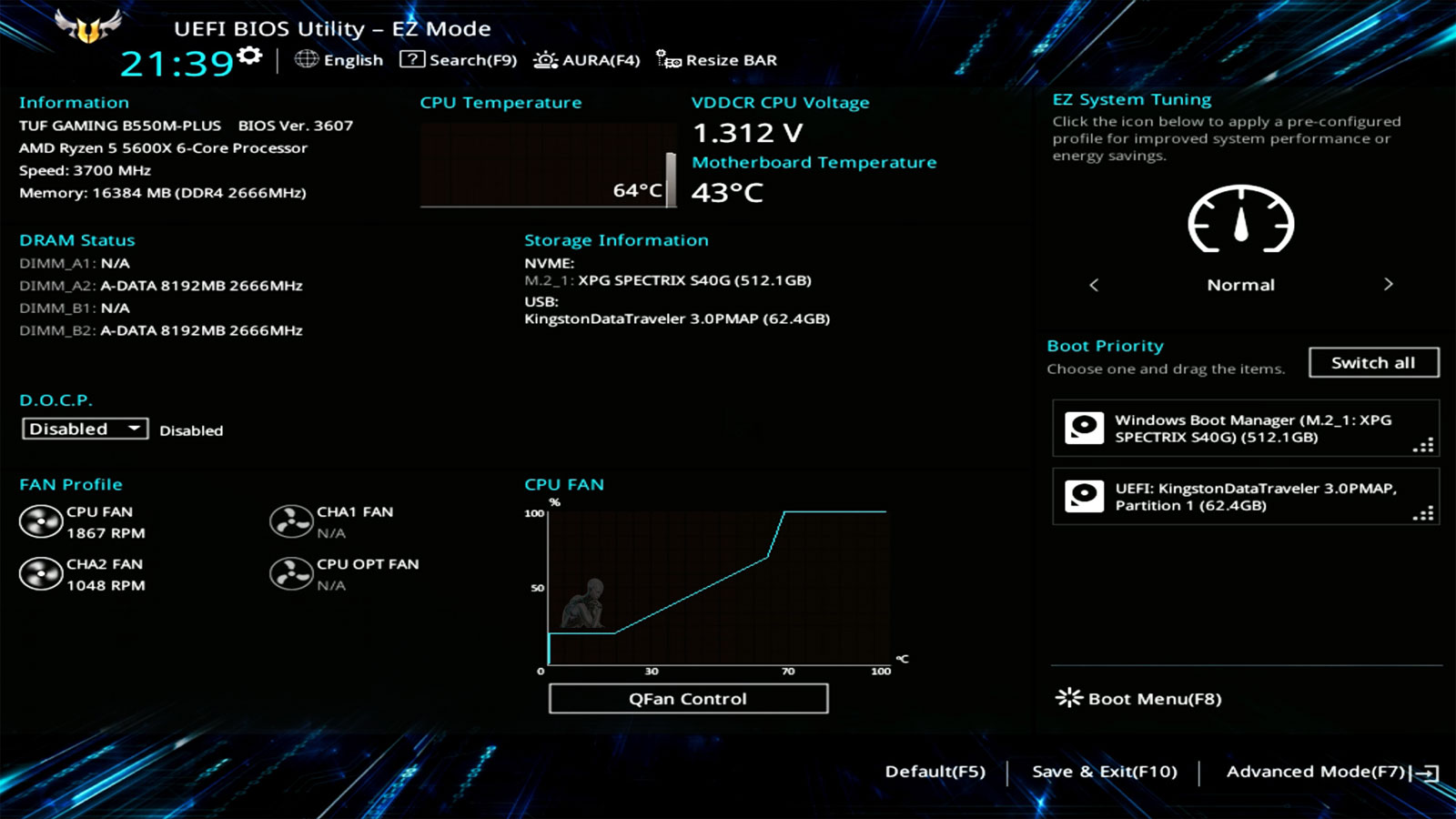
On current PCs, much of this work is coordinated by UEFI, or Unified Extensible Firmware Interface. UEFI is firmware stored on the motherboard rather than on the Windows system drive. It begins operating before Windows and provides the environment in which the computer can initialize hardware and locate a bootable operating system. The exact sequence varies among processors, chipsets, motherboards, firmware implementations, and hardware configurations. Still, the overall progression follows a recognizable path from initial power-on to the point where Windows assumes control.
UEFI Replaced the Traditional BIOS Model
For many years, PC startup was associated with the BIOS, or Basic Input/Output System. BIOS firmware initialized hardware and then looked for boot code, traditionally using structures such as the Master Boot Record on a storage device. UEFI provides a much more capable firmware environment. Among other differences, it supports modern boot methods based on executable files stored on an EFI System Partition, commonly abbreviated ESP. It also works naturally with GPT-partitioned drives, provides standardized firmware interfaces, and supports features such as Secure Boot.
People still commonly use the word “BIOS” when referring to a modern motherboard’s firmware setup screen. A manufacturer may even use BIOS terminology in its interface or documentation. Technically, however, most contemporary Windows PCs use UEFI firmware, even if the older term remains part of everyday computer language.
From Power Button to Windows Boot Manager
What POST Codes and Diagnostic LEDs Can Reveal
A computer that fails during early startup may have very limited ways to explain the problem. Motherboard manufacturers use several methods to provide diagnostic information before an operating system is available. Some boards have small LEDs labeled for components such as CPU, DRAM, VGA, and BOOT. Others provide a two-digit diagnostic display that shows hexadecimal codes as the firmware progresses through initialization. Beep codes may be available when a compatible speaker or onboard audio indicator is present.
These indicators can help identify the general stage where startup stopped. A DRAM indicator, for example, can point toward a memory-initialization problem, although it does not prove that the DIMM itself is defective. The underlying cause could involve the memory, its installation, processor memory controller, motherboard, firmware settings, or another platform issue. Diagnostic codes should therefore be interpreted using the documentation for the specific motherboard or computer rather than assumed to have universal meanings.
The First Boot After a Hardware Change Can Take Longer
Not every unusually long pre-Windows startup indicates a failure. Memory changes are a common example. On platforms that perform memory training, replacing RAM or changing memory settings can cause the firmware to spend additional time establishing stable operating parameters. Some systems may restart more than once during this process.
Firmware updates can also result in a longer first startup because configuration data may have been reset or hardware may need to be initialized again under the new firmware. Immediately interrupting the process because the first boot is taking longer than usual can sometimes make troubleshooting more confusing. The expected behavior depends on the platform, so manufacturer documentation is particularly valuable after firmware updates or significant hardware changes. Persistent delays on every startup are a different matter and may justify further investigation.
Secure Boot Fits Into the UEFI Environment
Secure Boot is a UEFI security feature designed to help prevent unauthorized or untrusted boot software from executing during startup. Rather than allowing any bootloader to run without verification, Secure Boot uses a trust framework based on cryptographic signatures and keys maintained by the firmware. The purpose is to establish greater confidence in the software being executed before the operating system fully takes control.
Secure Boot does not perform the same job as antivirus software, nor does enabling it make a computer immune to malware. It protects a specific part of the startup chain. Its relationship with UEFI also illustrates how much the firmware’s role has expanded beyond the basic hardware initialization traditionally associated with older PC BIOS implementations.
Fast Startup and Fast Boot Are Not Necessarily the Same Thing
Boot terminology can become confusing because firmware and Windows can each contain features intended to reduce startup time. A motherboard may provide a setting called Fast Boot that reduces or skips certain firmware initialization procedures to shorten the pre-operating-system portion of startup. Windows Fast Startup is a separate operating-system feature. It changes how Windows handles shutdown and subsequent startup by preserving certain system state rather than performing the equivalent of a completely fresh operating-system initialization every time.
The two features operate at different parts of the startup process. This distinction can matter during troubleshooting. A setting that changes Windows startup behavior should not automatically be expected to correct a delay occurring during POST, just as changing a firmware Fast Boot option does not repair damaged Windows boot files.
The EFI System Partition Is Small but Essential
The EFI System Partition receives little attention during normal computer use because users generally do not interact with it directly. Its small size can also make it appear insignificant compared with the much larger partition containing Windows, applications, and personal files. From a boot perspective, however, its contents are critical.
If the Windows boot files on the ESP are deleted or corrupted, or if the firmware no longer has a valid way to locate the Windows boot entry, the system may be unable to start Windows even though the main operating-system partition remains readable. This is one reason disk cloning, partition changes, operating-system migrations, and multi-boot configurations have to preserve more than the visible Windows volume. A successful UEFI boot depends on the relationship between the firmware boot configuration, the EFI System Partition, and the operating system installed elsewhere on the storage device.
The Stage of Failure Helps Narrow the Diagnosis
Boot problems become easier to reason about once startup is viewed as a sequence rather than a single event. A computer that never completes memory initialization presents a different diagnostic problem from one that reaches the firmware setup but cannot find Windows Boot Manager. Both are described casually as computers that “won’t boot,” yet the failures occur at very different stages and involve different parts of the system.
The same principle applies when the Windows logo appears and the machine fails afterward. Reaching that point indicates that substantial portions of the earlier process have already succeeded: the processor executed firmware, memory became usable, the platform progressed through initialization, a boot target was found, and Windows boot software began executing. Knowing where control passes from hardware initialization to UEFI boot management and eventually to Windows provides a much more useful framework for diagnosing startup failures than treating the entire process as one indivisible operation.