
How to Replace your Laptop HDD.
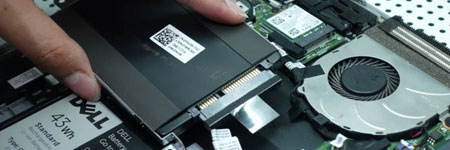
Understanding Laptop Hard Drives
A laptop’s hard drive is one of its most critical components, responsible for storing your operating system, applications, and personal data. Unfortunately, due to frequent movement and shocks, laptop hard drives are more prone to failure than their desktop counterparts. If your hard drive fails, replacing it is one of the few hardware upgrades you can perform on a laptop.
Steps to Replace Your Laptop Hard Drive
1. Backup Your Data
Before attempting to replace your hard drive, back up your important files to an external drive or cloud storage. If possible, create a disk image to restore your system easily after replacement.
2. Identify Your Hard Drive Type
Laptops use either IDE (older models) or SATA (modern models) hard drives. SSDs (Solid State Drives) are also an excellent upgrade option for better speed and reliability.
3. Locate the Hard Drive Compartment
Most laptops have a designated hard drive bay, usually accessible by removing a small panel on the bottom. However, in some models, the hard drive is placed under the keyboard or inside the casing, requiring more effort to access. Consult your laptop’s manual or visit the manufacturer’s website for specific instructions.
4. Remove the Old Hard Drive
- Power off your laptop and disconnect it from any power source.
- Remove the battery for safety.
- Unscrew the hard drive compartment cover.
- Carefully slide out the old hard drive. Some drives are secured with brackets—remove them if necessary.
- Be mindful of electrostatic discharge (ESD), which can damage components. Use an anti-static wrist strap or touch a grounded metal surface before handling internal parts.
5. Install the New Hard Drive
- If upgrading to an SSD, ensure it’s the same size (2.5 inches) as your old drive.
- Insert the new drive into the slot and secure it with screws or brackets.
- Reattach the compartment cover.
6. Reinstall the Operating System
After replacing your hard drive, you’ll need to reinstall your operating system. If you created a backup image, restore it; otherwise, install Windows, macOS, or Linux from a bootable USB or recovery disk.
Tips for Maintaining Your New Hard Drive
- Back up regularly to avoid data loss in case of failure.
- Use SSDs instead of traditional HDDs for better durability and speed.
- Avoid excessive movement while your laptop is running to reduce mechanical wear.
- Enable TRIM (for SSDs) to optimize performance and longevity.
Conclusion
Replacing a laptop hard drive is a simple but essential skill that can save you money on repairs and prolong your laptop’s lifespan. By backing up your data, choosing the right replacement drive, and carefully following the installation steps, you can ensure a smooth and hassle-free upgrade.