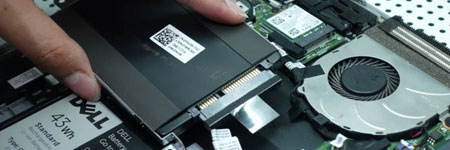
How to Replace your Laptop HDD.

Understanding Laptop Hard Drives

A laptop’s hard drive is one of its most critical components, responsible for storing your operating system, applications, and personal data. Unfortunately, due to frequent movement and shocks, laptop hard drives are more prone to failure than their desktop counterparts. If your hard drive fails, replacing it is one of the few hardware upgrades you can perform on a laptop.

Steps to Replace Your Laptop Hard Drive

1. Backup Your Data

Before attempting to replace your hard drive, back up your important files to an external drive or cloud storage. If possible, create a disk image to restore your system easily after replacement.

2. Identify Your Hard Drive Type

Laptops use either IDE (older models) or SATA (modern models) hard drives. SSDs (Solid State Drives) are also an excellent upgrade option for better speed and reliability.

3. Locate the Hard Drive Compartment

Most laptops have a designated hard drive bay, usually accessible by removing a small panel on the bottom. However, in some models, the hard drive is placed under the keyboard or inside the casing, requiring more effort to access. Consult your laptop’s manual or visit the manufacturer’s website for specific instructions.

4. Remove the Old Hard Drive

  • Power off your laptop and disconnect it from any power source.
  • Remove the battery for safety.
  • Unscrew the hard drive compartment cover.
  • Carefully slide out the old hard drive. Some drives are secured with brackets—remove them if necessary.
  • Be mindful of electrostatic discharge (ESD), which can damage components. Use an anti-static wrist strap or touch a grounded metal surface before handling internal parts.

5. Install the New Hard Drive

  • If upgrading to an SSD, ensure it’s the same size (2.5 inches) as your old drive.
  • Insert the new drive into the slot and secure it with screws or brackets.
  • Reattach the compartment cover.

6. Reinstall the Operating System

After replacing your hard drive, you’ll need to reinstall your operating system. If you created a backup image, restore it; otherwise, install Windows, macOS, or Linux from a bootable USB or recovery disk.

Tips for Maintaining Your New Hard Drive

  • Back up regularly to avoid data loss in case of failure.
  • Use SSDs instead of traditional HDDs for better durability and speed.
  • Avoid excessive movement while your laptop is running to reduce mechanical wear.
  • Enable TRIM (for SSDs) to optimize performance and longevity.

Conclusion

Replacing a laptop hard drive is a simple but essential skill that can save you money on repairs and prolong your laptop’s lifespan. By backing up your data, choosing the right replacement drive, and carefully following the installation steps, you can ensure a smooth and hassle-free upgrade.

Learning about computer keyboards

The Evolution of Computer Keyboards

Modern computer keyboards have come a long way from their origins in mechanical typewriters, which didn’t even require electricity. Today, users can choose from a variety of keyboard designs, including ergonomic, mechanical, backlit, foldable, and programmable models. Despite these advancements, the fundamental function of keyboards remains the same: converting keystrokes into signals that a computer can understand.

How Keyboards Work

A computer keyboard is a typewriter-style device that uses an arrangement of buttons or keys to act as mechanical levers or electronic switches. In modern computers, pressing a key sends an electrical signal to the computer, which then interprets the signal and displays the corresponding character on the screen.

The Role of Keyboards in Computing

Despite the rise of alternative input methods such as touchscreens, voice recognition, and styluses, the keyboard remains the most widely used input device for entering text and commands into a computer. Keyboards are essential for various tasks, including:

  • Typing text in word processors and text editors

  • Executing commands in operating systems (e.g., Ctrl + Alt + Delete in Windows)

  • Gaming, using specialized keyboards with customizable keys

  • Coding and programming, requiring fast and efficient text input

Keyboard Layouts and Variants

Keyboards come in different layouts, with the most common being QWERTY, named after the first six letters on the top row of keys. Other layouts include:

  • DVORAK – Designed for efficiency and reducing finger movement

  • AZERTY – Used mainly in France and Belgium

  • QWERTZ – Common in Germany and Central European countries

Additionally, mechanical keyboards with tactile switches are popular among typists and gamers due to their durability and responsiveness.

Gaming Keyboards

For gamers, a gaming keyboard provides extra features like programmable keys, RGB lighting, and faster response times. Many gaming keyboards use mechanical switches that offer superior performance compared to traditional membrane keyboards.

Keyboards as a Command Tool

Besides typing, keyboards play a vital role in controlling operating systems and software. Shortcut commands allow users to perform actions more efficiently, such as:

  • Ctrl + C / Ctrl + V – Copy and paste text

  • Alt + Tab – Switch between open applications

  • Windows + D – Show the desktop instantly

Choosing the Right Keyboard

When selecting a keyboard, consider the following factors:

  • Purpose – General use, gaming, or professional typing

  • Switch type – Mechanical vs. membrane

  • Connectivity – Wired vs. wireless

  • Ergonomics – Wrist support and hand comfort

Conclusion

No matter how many new input methods emerge, keyboards remain an essential tool for computing. Whether you’re a casual user, a gamer, or a professional, investing in the right keyboard can enhance your productivity, efficiency, and comfort. Understanding the different types of keyboards and their functionalities ensures you make an informed decision when choosing the best one for your needs.