
Replace or repair the motherboard with the best gaming motherboard in 2025
Custom PC Building Made Easy
Building a custom PC can be overwhelming, but our custom build service simplifies the process for both beginners and advanced users. Our tech experts will guide you in selecting the best components based on your needs, whether for gaming, productivity, or general use. If you already know what you want, just let us know your specifications, and we’ll assemble your PC professionally.
Expert Motherboard Repair Services
We specialize in component-level motherboard repair, offering the most innovative and reliable circuit board repair, rework, and modification services. Our highly skilled technicians ensure precise repairs with strict delivery schedules for every project.
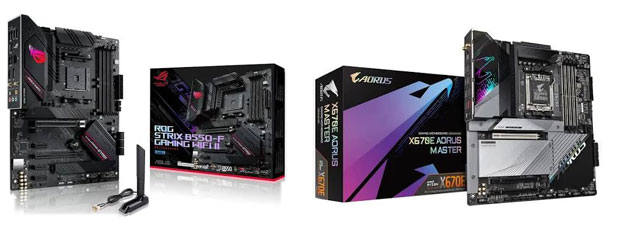
Choosing the Right Motherboard for Your Build
If you’re looking to replace your PC motherboard, start by identifying your CPU (processor) and consider the following factors:
- Socket type compatibility (Intel or AMD)
- Form factor (E-ATX, ATX, Micro-ATX, Mini-ITX)
- RAM capacity and slots
- Expansion slots for GPUs, SSDs, and add-on cards
- Storage options (M.2, SATA, NVMe support)
- Connectivity ports (USB, Thunderbolt, Wi-Fi, Ethernet)
- Your budget and long-term upgrade plans
A motherboard is the foundation of your PC, and selecting the right one ensures stability, performance, and future upgradeability.
Best Motherboards for 2025
For the latest AMD and Intel platforms, here are our top motherboard recommendations:
- AMD Zen 5 Processors: MSI MAG X870 Tomahawk – Best X870 gaming motherboard
- Intel 13th & 14th Gen Processors: We recommend Z790, B760M, Z690, B660, and H610 motherboards
Whether you’re a casual gamer or an enthusiast overclocker, these motherboards provide high-end features, durability, and seamless compatibility with the latest components. So if you’re looking for a board for a recent-generation CPU, one of our picks below should suit your needs well.
- MSI X870E MAG TOMAHAWK WIFI AMD AM5 ATX Motherboard (Price $299.99)
- ASUS X870E-E ROG Strix Gaming WiFi AMD AM5 ATX Motherboard (Price $499.99)
- Gigabyte B650 AORUS ELITE AX ICE AMD AM5 ATX Motherboard (Price $209.99)
- MSI Z790-P Pro WiFi D4 Intel LGA 1700 ATX Motherboard (Price $169.99)
- ASUS Z790-V Prime AX Intel LGA 1700 ATX Motherboard (Price $199.99)
- ASUS B650-A ROG Strix Gaming WiFi AMD AM5 ATX Motherboard (Price $209.99)
- ASRock X870 Pro RS WiFi AMD AM5 ATX Motherboard (Price $209.99)
- Gigabyte X870E AORUS ELITE WIFI7 AMD AM5 ATX Motherboard (Price $319.99)
- MSI X870E MPG CARBON WIFI AMD AM5 ATX Motherboard (Price $499.99)
- Gigabyte X870E AORUS Pro Ice AMD AM5 ATX Motherboard (Price $359.99)
- ASUS B850-I ROG Strix Gaming Wifi AMD AM5 Mini-ITX Motherboard (Price $299.99)
- Gigabyte B850 AORUS Elite WiFi7 Ice AMD AM5 ATX Motherboard (Price $229.99)
- ASUS X870-A ROG Strix Gaming WiFi AMD AM5 ATX Motherboard (Price $299.99)
- Gigabyte X870 AORUS ELITE WIFI7 ICE AMD AM5 ATX Motherboard (Price $269.99)
- Gigabyte X870I AORUS PRO ICE AMD AM5 Mini-ITX Motherboard (Price $289.99)
- Gigabyte X870E AORUS Master AMD AM5 ATX Motherboard (Price $479.99)
- Gigabyte X870 AORUS ELITE WIFI7 AMD AM5 ATX Motherboard (Price $269.99)
- Gigabyte B850 AORUS Elite WiFi7 AMD AM5 ATX Motherboard (Price $219.99)
- MSI X870 MAG TOMAHAWK WIFI AMD AM5 ATX Motherboard (Price $299.99)
- Gigabyte X870E AORUS PRO AMD AM5 ATX Motherboard (Price $359.99)
- Gigabyte B850I AORUS PRO AMD AM5 Mini-ITX Motherboard (Price $259.99)
- MSI B650 MAG Tomahawk WiFi AMD AM5 ATX Motherboard (Price $219.99)
- Gigabyte X870 EAGLE WIFI7 AMD AM5 ATX Motherboard (Price $219.99)
- ASUS X670E-PLUS TUF GAMING WIFI ATX Motherboard (Price $259.99)
- Gigabyte B650I Aorus Ultra AMD AM5 Mini-ITX Motherboard (Price $239.99)
- ASRock X870 Steel Legend WiFi AMD AM5 ATX Motherboard (Price $259.99)
- MSI Z790 MAG Tomahawk WiFi Intel LGA 1700 ATX Motherboard (Price $289.99)
- ASUS B650E-F ROG STRIX GAMING WIFI AMD AM5 ATX Motherboard (Price $289.99)
- ASUS B860-I ROG Strix Gaming WiFi Intel LGA 1851 Mini-ITX Motherboard (Price $219.99)
- ASUS B850-F ROG Strix Gaming Wifi AMD AM5 ATX Motherboard (Price $269.99)
- MSI Z890-P PRO WiFi Intel LGA 1851 ATX Motherboard (Price $239.99)
- ASUS B850M-PLUS TUF Gaming Wifi AMD AM5 microATX Motherboard (Price $219.99)
- MSI X870-P Pro WiFi AMD AM5 ATX Motherboard (Price $239.99)
- ASUS Z890 ROG MAXIMUS APEX Intel LGA 1851 ATX Motherboard (Price $719.99)
- ASRock B850 Riptide WiFi AMD AM5 ATX Motherboard (Price $219.99)
- ASUS TRX50-SAGE Pro WS WiFi AMD sTR5 CEB Motherboard (Price $899.99)
- MSI B760I MPG Edge WiFi Intel LGA 1700 Mini-ITX Motherboard (Price $219.99)
- ASUS WRX90E-SAGE Pro WS SE AMD sTR5 EEB Motherboard (Price $1299.99)
Why Your Motherboard Matters
Your motherboard defines your PC’s capabilities. It determines which CPU, RAM, and expansion cards you can use. Whether you’re building an AMD or Intel system, choosing the best motherboard is crucial for unlocking the full potential of your hardware.
Looking for the best motherboard for gaming or productivity? Contact us today for expert recommendations and build your dream PC with confidence!
