
• Home |
  • SITEMAP
Computer Repair Miamis logo
  • DESKTOP
    • Desktop Data Recovery
  • LAPTOP
    • LAPTOP DATA RECOVERY
  • MAC REPAIR
    • MAC DATA RECOVERY
    • iPHONE
  • Services
  • Areas we Serve
  • BLOG
  • CONTACT US
    • SITEMAP
    • FREE DELIVERY
  • Home
  • » Tech Knowledge »

Finding the Best Memory Replacement.
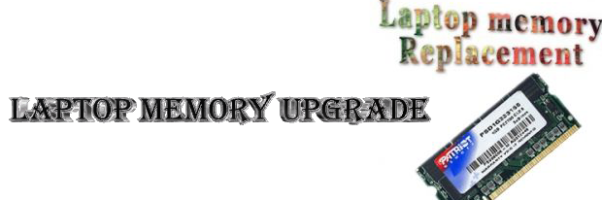
Finding the Best Memory Replacement.

Understanding RAM and Its Importance

Every component in your computer plays a vital role in its performance, and RAM (Random Access Memory) is no exception. While many believe that “more RAM is better,” that’s not always the case. Choosing the right RAM for your laptop or desktop requires understanding compatibility, specifications, and upgrade options.

How to Upgrade Laptop Memory

1. Identify Your Current RAM Type

Laptops and desktops use different memory types, such as DRAM, DIMM, SO-DIMM, DDR, DDR2, DDR3, and DDR4. The specific type your system supports depends on the motherboard and manufacturer. If your laptop’s manual doesn’t specify the correct memory type, visit the manufacturer’s website and search using the model number.

Alternatively, online tools from brands like Kingston and Crucial can help identify the exact RAM type compatible with your laptop. Simply enter your laptop’s make and model, and the tool will generate a list of supported upgrades.

2. Signs That Your RAM Needs Replacement or Upgrade

If your laptop experiences frequent crashes, slow performance, or error messages at startup, a failing or insufficient memory module could be the cause. Insufficient RAM can lead to performance bottlenecks, making multitasking and demanding applications sluggish.

3. Locating and Replacing the RAM Module

The location of RAM modules varies across laptops:

  • Some are easily accessible via a removable panel on the bottom of the laptop.
  • Others are located under the keyboard (common in IBM, Dell, and Acer models).
  • A few models require removing the hard drive or disassembling the casing.

Consult your laptop’s manual or manufacturer’s website for specific disassembly instructions.

4. Installation Process

  • Power off your laptop and unplug it.
  • Remove the battery for safety.
  • Open the memory compartment panel.
  • Handle the RAM module carefully to avoid static damage (use an anti-static wrist strap).
  • Align the new RAM module correctly—it only fits one way.
  • Insert the module into the slot at an angle, then press it down until it clicks into place.
  • Reassemble your laptop and power it on.

Precautions When Replacing RAM

  • Avoid static discharge – Always ground yourself before handling memory modules.
  • Check voltage compatibility – Some laptop models require specific voltage ratings.
  • Verify motherboard support – Not all laptops support maximum RAM capacity, so check manufacturer specifications.
  • Do not force the RAM module – If it doesn’t fit easily, it’s either inserted incorrectly or the wrong type.

A Common RAM Upgrade Mistake to Avoid

A colleague once attempted to swap RAM between two laptops of the same model but different revisions without checking compatibility. The result? A fried memory module and a damaged motherboard. Always verify compatibility before upgrading or replacing RAM.

Conclusion

Upgrading or replacing your laptop’s RAM is one of the easiest ways to boost performance and extend its lifespan. With proper research and installation, you can enhance your system’s multitasking abilities, speed up application performance, and prevent frequent crashes. Always double-check your laptop’s compatibility, handle components with care, and follow best practices to ensure a smooth RAM upgrade experience.

  • 24, 2014
  • Category: Tech Knowledge
  • Tags: computer memory, memory replacement
  • Comments Off on Finding the Best Memory Replacement.
  • « Previous
  • Next »

Sidebar Stories

  • MacBook Pro Battery Replacement May 27, 2025
  • MacBook Pro Logic Board Repairs May 26, 2025
  • MacBook Pro Liquid Damage Repairs May 25, 2025
  • MacBook Pro Video Repairs May 23, 2025
  • MacBook Pro Hard Drive Replacement May 21, 2025
  • MacBook Pro Trackpad Repairs May 20, 2025
  • MacBook Pro DC Jack Repairs May 19, 2025
  • MacBook Pro WiFi Repairs May 18, 2025
  • MacBook Pro Data Recovery May 17, 2025
  • MacBook Pro Data Transfer May 16, 2025
  • MacBook Pro Software Configuration May 15, 2025
  • Laptop Repair Diagnostic May 14, 2025
  • Laptop Cleaning and Maintenance May 12, 2025
  • Laptop Battery Replacement May 9, 2025
  • Laptop Screen Repairs May 8, 2025
  • Laptop Hard Drive Replacement May 6, 2025
  • Laptop Keyboard Repairs May 4, 2025
  • Laptop Liquid Damage Repairs May 2, 2025
  • Laptop Motherboard Repairs Apr 30, 2025
  • Laptop DC Jack Repairs Apr 29, 2025
  • Laptop Video Repairs Apr 26, 2025
  • Laptop Trackpad Repairs Apr 22, 2025
  • MacBook Pro Repair Diagnostic Apr 24, 2025
  • Laptop Trackpad Repairs Apr 23, 2025
  • MacBook Pro Cleaning and Maintenance Apr 22, 2025
  • MacBook Pro Screen Repairs Apr 21, 2025
  • MacBook Pro Keyboard Replacement Apr 20, 2025
  • Laptop Software Configuration Apr 19, 2025
  • Laptop Data Recovery Apr 17, 2025
  • iMac Diagnostic & Repair Services – Get Answers Fast Apr 16, 2025
  • iMac Cleaning and Maintenance Apr 15, 2025
  • Detecting if your gaming laptop requires air cleaning maintenance April 12, 2025
  • The Best Practices for Building a Custom Gaming PC April 11, 2025
  • Mistakes to avoid when trying to repair a liquid damaged pc April 10, 2025
  • Enhance the performance of your gaming PC for streaming April 8, 2025
  • Identifying the causes of slow laptop performance April 6, 2025
  • Home Services April 4, 2025
  • Wiring Installation April 3, 2025
  • Security Cameras April 1, 2025
  • Wired and Wireless Network Mar 28, 2025
  • Data Recovery Mar 27, 2025
  • Game Console Diagnostic Mar 25, 2025
  • Drone Repairs Mar 23, 2025
  • Microsoldering Services Mar 22, 2025
  • Tablet Diagnostic Mar 21, 2025
  • iPhone Repairs Mar 20, 2025
  • Mac Pro Power Supply Repairs Mar 18, 2025
  • Mac Pro Data Transfer Mar 15, 2025
  • Mac Pro Data Recovery Mar 14, 2025
  • Mac Pro Software Configuration Mar 13, 2025
  • Mac Pro Logic Board Repairs Mar 12, 2025
  • Mac Pro Hardware Upgrades Mar 10, 2025
  • Mac Pro Video Repairs Mar 8, 2025
  • Mac Pro Hard Drive Replacement Mar 7, 2025
  • Mac Pro Cleaning and Maintenance Mar 4, 2025
  • Mac Pro Repair Diagnostic Mar 3, 2025
  • Desktop Computer Data Recovery Mar 2, 2025
  • Desktop Computer Data Transfer Mar 1, 2025
  • Desktop Computer Software Configuration Mar 1, 2025
  • Desktop Computer Hardware Upgrades Feb 27, 2025
  • Desktop Computer Motherboard Repairs Feb 25, 2025
  • Desktop Computer Hard Drive Replacement Feb 24, 2025
  • Desktop Computer Cleaning and Maintenance Feb 23, 2025
  • Desktop Computer Repair Diagnostic Feb 21, 2025
  • All-in-One Computer Data Recovery Feb 18, 2025
  • All-in-One Computer Data Transfer Feb 17, 2025
  • All-in-One Software Configuration Feb 16, 2025
  • All-in-One Computer Hardware Upgrades Feb 14, 2025
  • All-in-One Computer Motherboard Repairs Feb 13, 2025
  • All-in-One Computer Hard Drive Replacement Feb 11, 2025
  • All-in-One Computer Power Supply Repairs Feb 10, 2025
  • All-in-One Computer Cleaning and Maintenance Feb 9, 2025
  • All-in-One Computer Repair Diagnostic Feb 7, 2025
  • MacBook Air Data Transfer Feb 5, 2025
  • MacBook Air Software Configuration Feb 4, 2025
  • MacBook Air Data Recovery Feb 3, 2025
  • MacBook Air Liquid Damage Repairs Feb 2, 2025
  • MacBook Air Logic Board Repairs Feb 1, 2025
  • MacBook Air Trackpad Repairs Jan 25, 2025
  • MacBook Air DC Jack Repairs Jan 24, 2025
  • MacBook Air Hard Drive Replacement Jan 23, 2025
  • MacBook Air Battery Replacement Jan 22, 2025
  • MacBook Air Keyboard Repairs Jan 21, 2025
  • MacBook Air Screen Repairs Jan 20, 2025
  • MacBook Air Cleaning and Maintenance Jan 19, 2025
  • MacBook Air Repair Diagnostic Jan 15, 2025
  • iMac Data Recovery Jan 14, 2025
  • iMac Data Transfer Jan 13, 2025
  • iMac Software Configuration Jan 11, 2025
  • iMac Logic Board Repair Jan 10, 2025
  • iMac Video Repair Jan 8, 2025
  • iMac Screen Repairs Jan 5, 2025
  • iMac Power Supply Repair Jan 2, 2025
  • iMac Hard Drive Replacement Jan 2, 2025
  • iMac Hardware Upgrades Jan 2, 2025

Frequently Served Cities

  • West Miami
  • Key Biscayne
  • Indian Creek
  • Cutler Bay
  • Miami Gardens
  • Hialeah Gardens
  • Palmetto Bay
  • North Bay Village
  • Bal Harbour
  • Homestead

Primary Service Zones

  • Miami
  • Miami Springs
  • South Miami
  • Pinecrest
  • Doral
  • Coral Gables
  • Sweetwater
  • North Miami Beach
  • Edgewater Miami
  • Downtown Miami

Popular Service Regions

  • Brickell Miami
  • Medley
  • Hialeah
  • Opa Locka
  • Midtown Miami
  • Virginia Gardens
  • North Miami
  • Miami Beach
  • Miami Shores
  • Miami Lakes

Fast, affordable Computer Repair Near You in Miami

Free pickup and delivery available for Miami residents. Call (305) 600-4217

Serving Miami residents with reliable PC and Mac repair

© 2011-2026 Computer Repair Miamis . All Rights Reserved.

  • Twitter
  • Facebook
  • Vimeo
Pinterest Tumblr Instagram